

Jython#
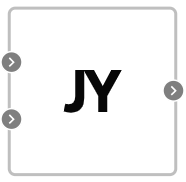
Block appearance in REPEAT VISION#
Jython block allows to execute programs using the syntax and semantics of the Python 2 language on the Java platform. Jython program can import and use classes and libraries used in a Java solver. The code itself can be edited in the built-in editor of the Application, which can be accessed using one of the following methods:
By double-clicking LMB on the block
Select block by clicking on it LMB;
Click on the ‘Edit block code’ button located in the right panel of the project settings in the ‘Actions’ section.
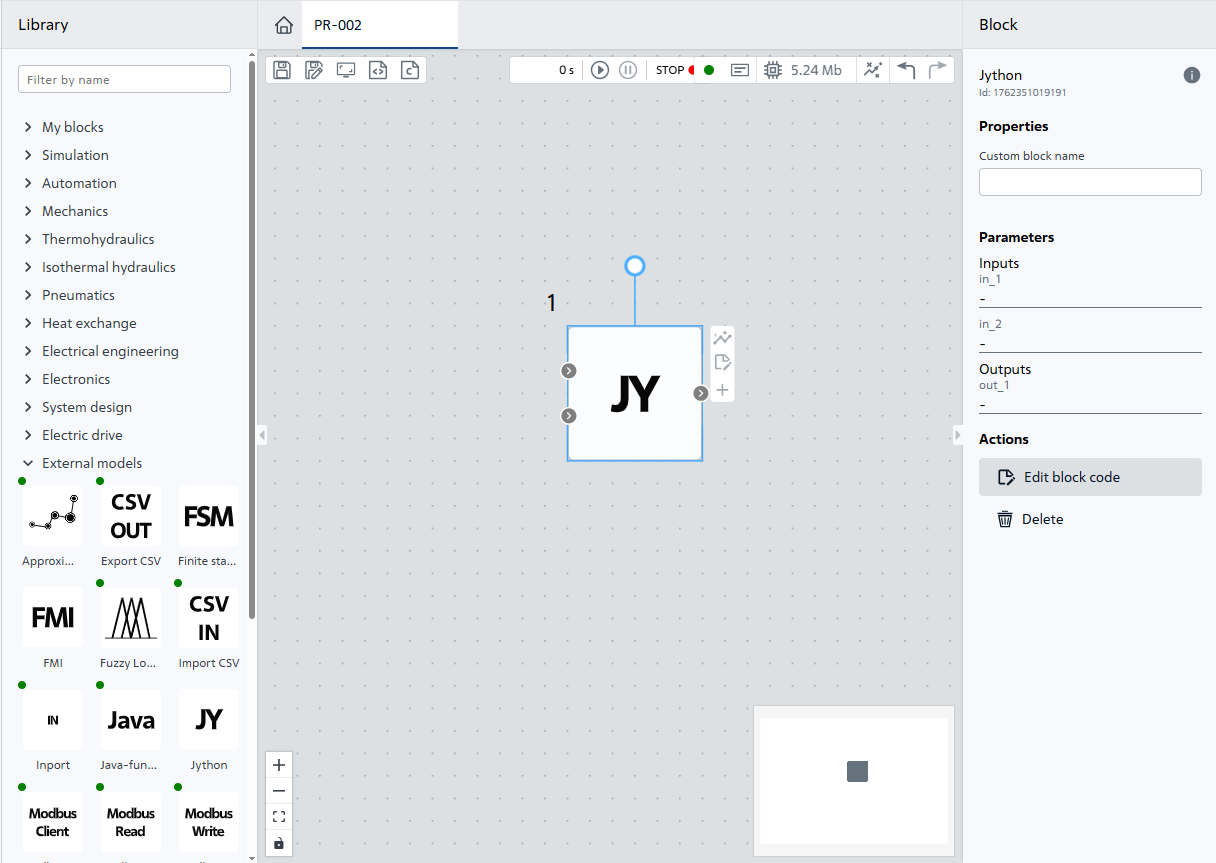
Fig. 1 Edit block code#
In the Jython block, three tabs are available for implementing the Python code of the program (see Fig. 2, Fig. 3, Fig. 4 below):
This step is coded once before the simulation to prepare for the calculation process. At this stage, you need to perform:
Import of required libraries;
Create program items for which you want to save the state between the execution of integration steps in the calculation process;
Create the necessary functions and classes for the next call at the simulation stage in Calculation code.
Code of this stage is executed at each integration step from the beginning of the calculation to its stop. The following is necessary at this stage:
Call functions and methods of Python classes of the program responsible for simulation;
Use in values of the input ports of the Jython block and return the results to out output ports of the Jython block;
Items created within the calculation code* do not retain their state after the integration step is completed.
If your items need to maintain a state between integration steps, then they should be created and configured at the initialization stage and then used in the calculation code.
The code of this stage is executed once when the calculation is stopped.
At the end of the calculation, the data of Python program items can be processed, the state of which between the implementation of the integration steps was required to be saved in the calculation process.
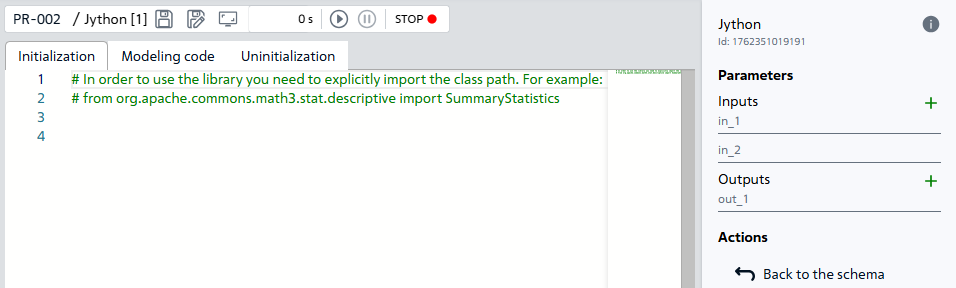
Fig. 2 Initialization#
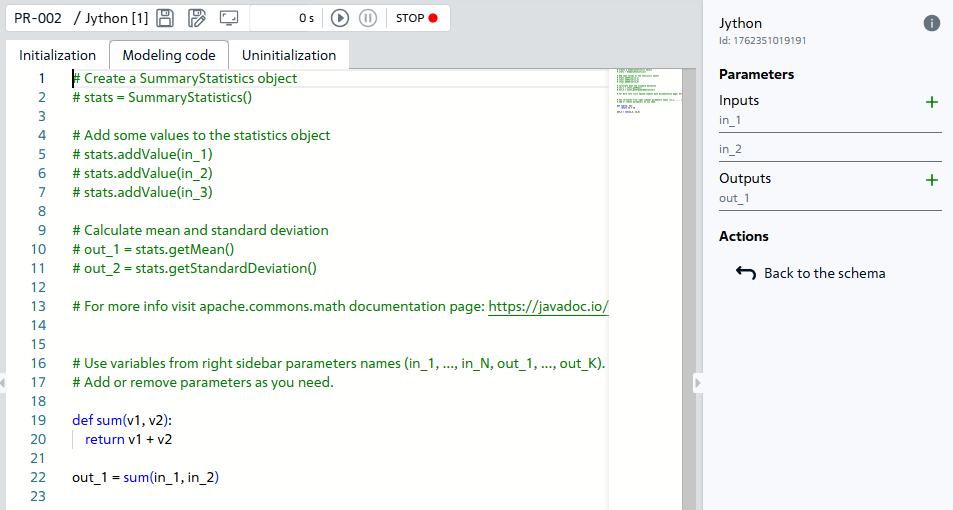
Fig. 3 Modeling code#
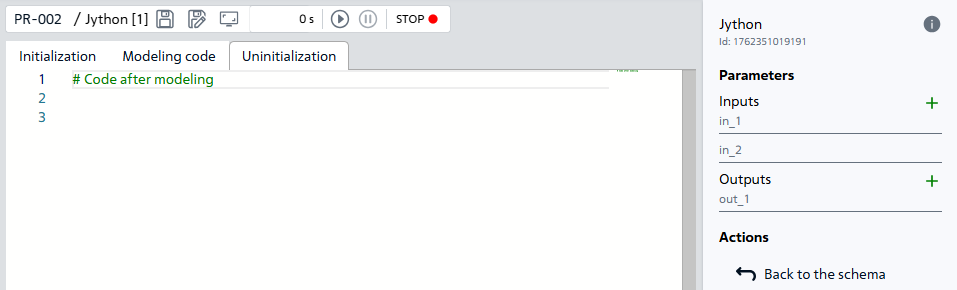
Fig. 4 Uninitialization#
1. Operation with block ports#
The block allows to change the number of input and output ports so that they can be used inside the script code (number and name, see Fig. 5 below).
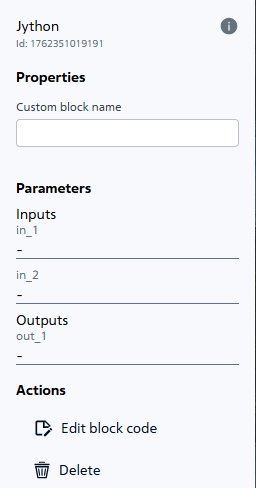
Fig. 5 Jython block parameters#
When input ports are added in the right panel, variables with the appropriate name are automatically initialized on the solver side during the calculation run. Thus, it is possible to use input variables in the script as already pre-initialized and declared variables, while output variables only need to be declared, as shown in the example, Fig. 6:
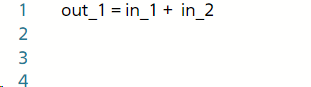
Fig. 6 An example code for Jython block with two inputs and one output#
The number and names of the selected ports shall clearly correspond to the variables used within the code. Otherwise, the solver will return the error to the log, Fig. 7:

Fig. 7 Example of an error if the output variable out_1 was not defined#
Important
The Jython output port does not support integers. To enter an integer, simply put a period after it. An example of writing the number 3 for the output port of a Jython block: 3.
2. Use of libraries#
In order to use objects and methods of third-party libraries inside the script, it is necessary to import the corresponding libraries by using the construct: “from
Library |
Import path |
Description |
Documentation |
|---|---|---|---|
Java (standard library) |
java.util |
LibericaJDK-17 Java standard libraries |
|
Apache Math |
org.apache.commons.math3 |
Commons Math is a library of easy, mathematical and statistical components solving the most common problems not available in Java or Commons Lang programming language. |
|
Other apache commons libraries |
org.apache.commons.lang3 |
Apache Commons contains a collection of Java utility libraries for various purposes, available under Apache License, and used in many other open source projects. |
|
Neqsim |
org.neqsim |
NeqSim is an open source Java library to simulate thermal-hydraulic processes. |
|
JAMA |
gov.nist.math.Jama |
JAMA is a basic linear algebra package for Java. |
|
SSJ - Stochastic Simulation in Java |
ca.umontreal.ssj.charts |
SSJ (Stochastic Simulation in Java) is a Java library offering tools for stochastic simulation (Monte Carlo). |
|
Colt |
colt |
Colt provides a set of open source libraries for high-performance scientific and technical computing in Java. |
3. Description of block operation#
The Jython block, like most blocks in the app, computes in a general model loop with a given step, which is determined by the solver using a numerical method to solve a set of equations. Thus, Jython program (script) is compiled once before the calculation starts and executed at each step.
4. Error display#
The errors description when starting the scheme with the Jython block can be seen in the log. If the calculation error is directly related to the code (syntax errors or exception calls), it is possible to determine the error cause from the top call of the stack-trace in the log. In most cases, exceptions will be handled by the “org.python.core” library method and a specific script line number shall be logged (see Fig. 8 below), otherwise contact technical support.
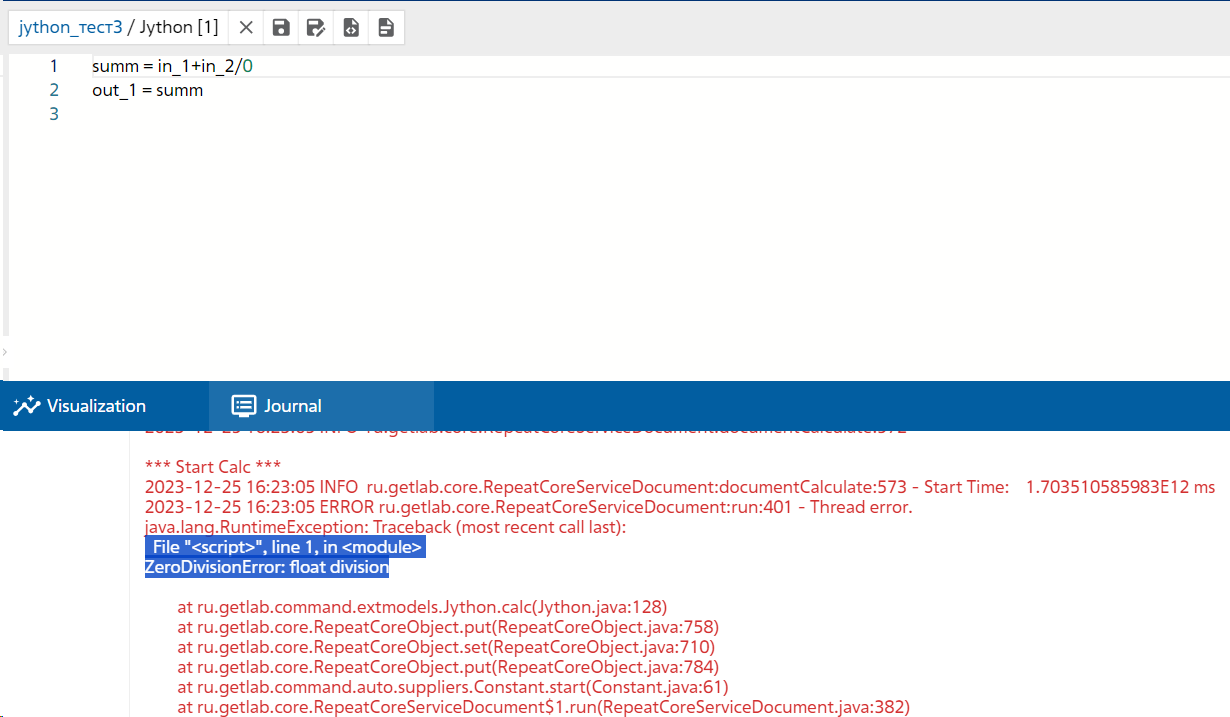
Fig. 8. Example of a division by zero exception call and log output describing the error#
5. Recommendations for writing code#
When working with Jython block, it is possible to use the entire syntax and semantics of the Python 2 language, however, due to the computation feature of calculation cycles (see previous item), it is not recommended to use cycles with multiple iterations, especially infinite cycles, inside the code. All cycles shall have a mandatory exit condition, otherwise the calculation results can be unpredictable, also it can highly affect the calculation performance. In this case, it is not recommended to use function calls to work with standard I/O stream such as: print(), input(), etc., as these functions are not processed during code compilation. The same applies to any system calls.
6. Possible problems#
When working with different data types, it’s important to remember that Jython is a library for interpreting Python syntax into Java. Thus, some type operations in Python do not correspond to those in Java. For example, integer division in Python is possible because of dynamic data typing. This operation is not supported in Jython because Java’s integer division always returns zero, which can affect the final result of the calculation. Thus, the script code shall use real numbers of float type when dividing, Fig. 9:
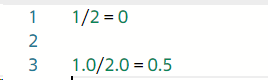
Fig. 9 Example of integer division in Jython#
7. Loading a user image#
You can add a user image to a block.
For this it is necessary:
Select block Jython by clicking on it LMB;
To the right of the block image, click the
+(“Add image file”) button, Fig. 10:
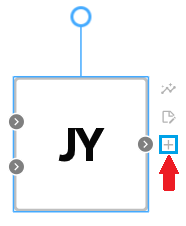
Fig. 10 Add image#
Select the desired image on the PC
8. Replacing the standard block icon#
The block has the ability to replace the icon with a custom image. To do this, RMB on the block and select LMB - Select image, Fig. 11:
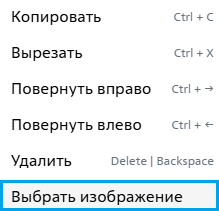
Fig. 11 Select image#
Then select the desired image on your PC.
Once an image is added, RMB on the block will make two options available (see Fig. 12 below):
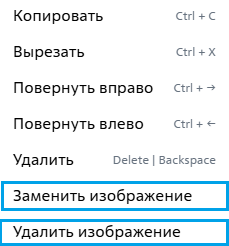
Fig. 12 Replacing/removing an image#
Hint
If you delete a custom block image, it will revert to the default block image
9. Properties#
The block properties are set immediately when the user creates the model.
10. Inputs and outputs#
The properties of the block ports are set when the user creates the model.
11. Examples of use#
Examples of using this block can be found in the following sections:
Tutorials;
Description of Demo.
How-to guides
Section |
Guide name |
|---|---|
Aircraft industry |
Development of mathematical model of aircraft pitch angle control system |
Processing of diagnostic data and measurement results |
Application of Kalman filter for evaluation of measurement results |
Electrical equipment / Power industry |
Differential current protection of power transformer; |
Electrical equipment |
|
Energy |
Development of a model of the industrial circuit system of oil coolers of NPP with WCWR |