

Image#

Block appearance in REPEAT VISION#
The Image block allows to add a block to which you can upload your image.
After selecting a block, a symbol  , appears in its upper right corner, by clicking on which it becomes possible to upload your image.
You can also upload your own image by double-clicking on the block by LMB.
1. Replacing the standard block icon#
The block has the ability to replace the icon with a custom image. To do this, RMB on the block and select LMB - Select image, Fig. 1:
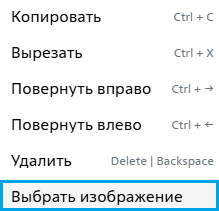
Fig. 1 Select image#
Then select the desired image on your PC.
Once an image is added, RMB on the block will make two options available (see Fig. 2 below):
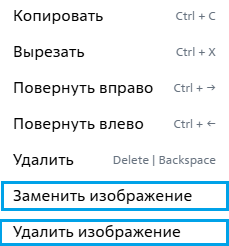
Fig. 2 Replacing/removing an image#
Hint
If you delete a custom block image, it will revert to the default block image