

Project#

Block appearance in REPEAT VISION#
The Project block allows you to create diagrams from blocks, which are essentially independent subprojects. For this purpose, the functionality of the Project block from the External models section of the library is used.
Note
You can add a user image to a block
This requires:
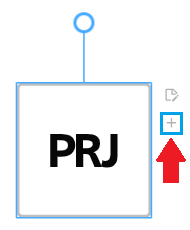
Fig.1 Add image#
Select the desired image on the PC
1. Replacing the standard block icon#
The block has the ability to replace the icon with a custom image. To do this, RMB on the block and select LMB - Select image, Fig. 11:
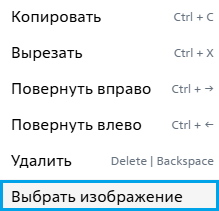
Fig. 2 Select image#
Then select the desired image on your PC.
Once an image is added, RMB on the block will make two options available (see Fig. 3 below):
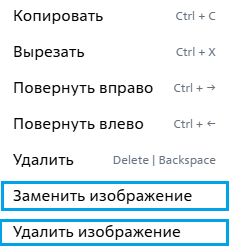
Fig. 3 Replacing/removing an image#
Hint
If you delete a custom block image, it will revert to the default block image
2. Properties#
No
Note
There are no properties available (properties appear when generating the nested subproject schema)
3. Inputs and outputs#
No