

Global variables#
The global variables functionality allows to specify the variable name, rather than a specific value, as the value of blocks properties.
Note
A variable created at the project level. Visible to all blocks without exception.
Supported values:
Type |
Example |
|---|---|
Integer values |
2 |
Floating-point numbers |
2.0 |
Arrays of numbers |
1;2;3;4 |
Array of arrays |
[[1.0;2.0],[3.0;4.0]] |
Hint
Local and global variables support the same value types
To use it, you need to select the Variables tab in the bottom panel of the application (see Fig. 1 below), switch to the Global variables tab and specify:
Variable;
Value;
If necessary, you can add a description (see Fig. 2 below).
Important
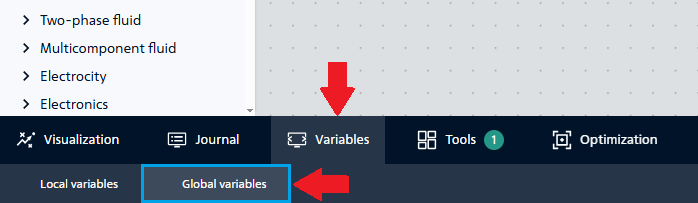
Fig. 1 Location of the Variables tab#
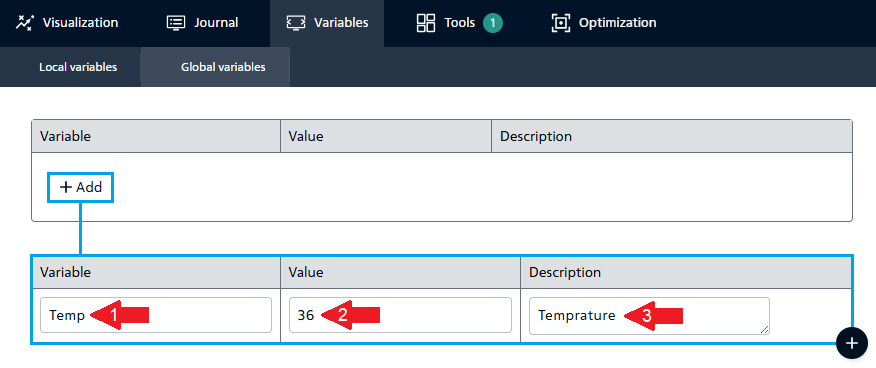
Fig. 2 Adding a global variable and its value#
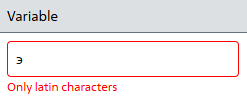
Fig. 3 Example of notification#
After adding a global variables, it can be used as a property value, including specifying it in several properties/blocks at once (Fig. 4):
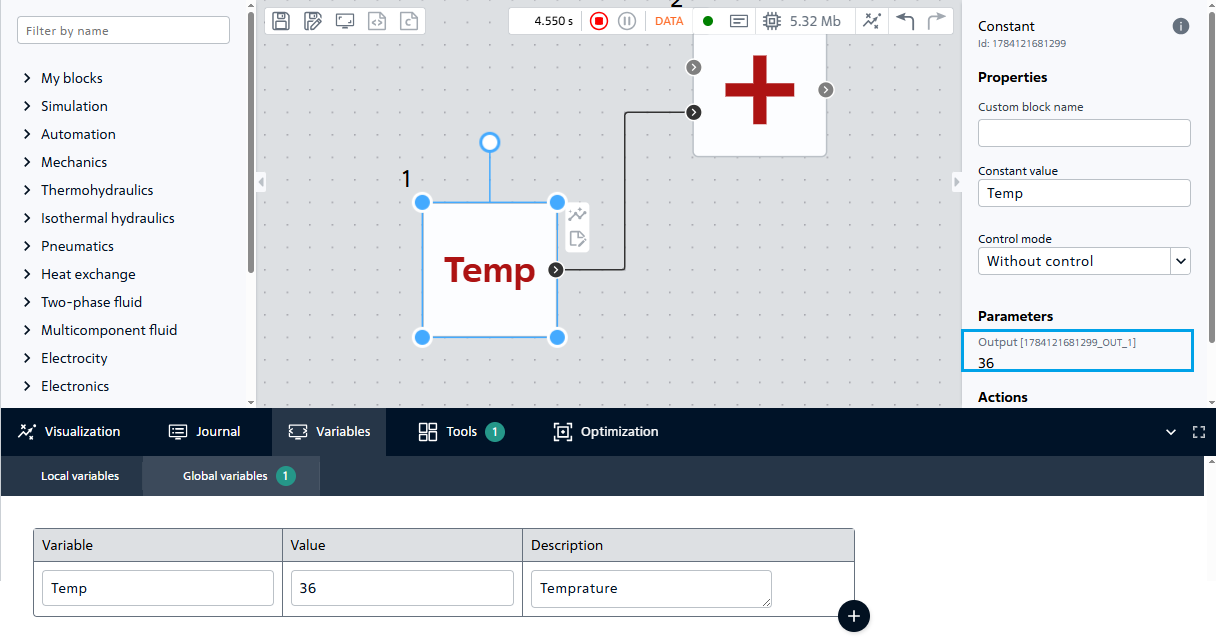
Fig. 4 Example of using a variable in a calculation#
Important
The value of the set variable will be displayed in the block properties only after the calculation is started.
When you hover over a line with a variable, two buttons appear to the right of the description:
 - delete variable;
 - manual change of the order of entered variables by dragging them with the LMB key pressed (Fig. 5):
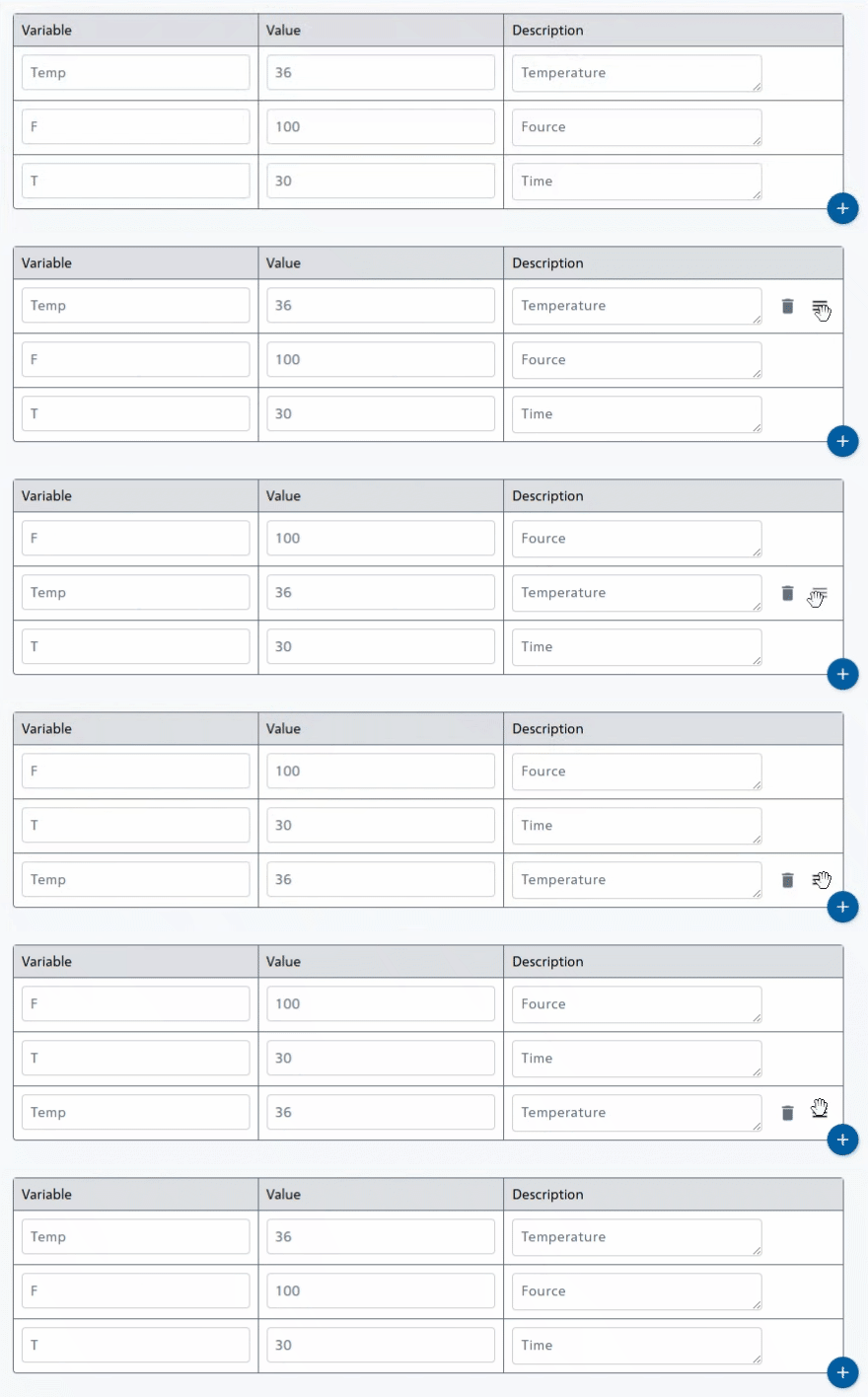
Fig. 5 Changing the order of variables#