

Export CSV#
Block appearance in REPEAT VISION#
The Export CSV block is designed to record signal values from block ports during calculations into an external file with the .csv extension.
CSV OUT: sampling type
A block can have an arbitrary number of input ports, the signal values from which will be written to the corresponding column in the output file.
By default, the csv table header is generated automatically according to the principle: t; in0; in1; in2; ... inN
where:
N - port serial number, starting from 0;
t - a column containing the model time in seconds.
The user can create a custom header: the number of columns, i.e. block ports, and their names. To do this, in the Headers type property, you must select Custom and in the Headers property, specify the desired column names, separated by the ; symbol.
Important
The column name allows only Latin characters, numbers, and the special characters _ and -.
The block properties associated with changing the discretization allow you to configure which portion of the calculated points will be written to the file. In other words, if the output file does not require the accuracy and number of calculation points determined by the integration step, then the number of points can be reduced.
An example of block settings is shown in Fig. 1 and Fig. 2:
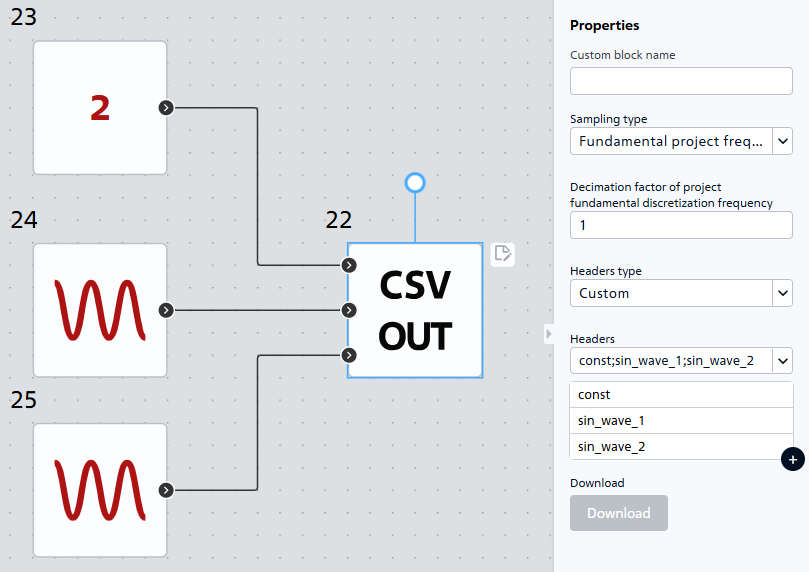
Fig. 1 Example of block settings#

Fig. 2. Example of a csv table header#
1. Properties#
Property |
Default Value |
Description |
Units of measurement |
|---|---|---|---|
Sampling type: |
Fundamental project frequency decimation |
- |
- |
Decimation factor of project fundamental discretization frequency, available when selecting |
1 |
- |
- |
Sample time, available when selecting |
0.05 |
- |
s |
Sampling frequency, available when selecting |
20 |
- |
Hz |
Headers type: |
Auto |
- |
- |
Number of input ports, available when selecting |
2 |
- |
- |
Headers, available when selecting |
in0;in1 |
Allows you to edit heading titles |
- |
Download |
- |
The ability to click the |
- |
2. Inputs and outputs#
Note
A block can only have input ports, and their number and names are automatically determined based on the contents of the CSV table.
In order to see the connection capabilities of the block, you need to go to page Description of block ports
See also
An example of using this block can be found in the tutorial Working with CSV files: exporting and importing simulation results in the section External models.