

Import CSV#
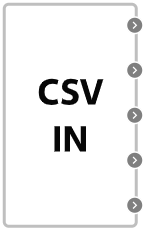
Block appearance in REPEAT VISION#
The Import CSV block is designed to read time series stored in an external csv file and convert them into signals for further use in the REPEAT VISION model.
CSV IN: interpolation, extrapolation
To correctly interpret the contents of a csv file, the following requirements must be met:
the column separator is the character
;;the separator of the fractional part of a decimal number is
.;the file contains 2 or more columns;
the values in each row are numbers.
The first column must correspond to the model time, i.e. the values in the second and subsequent columns are interpreted as the values of the signal corresponding to the moment of model time indicated in the first column. When reading a valid file, REPEAT VISION will automatically generate ports for the Import CSV block that correspond to the csv file columns.
The Extrapolation type and Interpolation type block properties allow you to configure the calculation of the block’s output signal values when the simulation time exceeds the time range specified in the file, as well as at times that are not equal to the times in the file.
Important
Restrictions:
If
Extrapolation typeis selected -No extrapolation, and if the model time is not specified (the model time exceeds the time specified in the file) - an error is returned: extrapolation isnone, value is out of array;In the Import CSV block, the time column values (t) must strictly increase. If this is not the case, an error is generated: Interpolation/extrapolation xVector is not strictly increasing array.
When adding a block to the workspace, the following message appears:
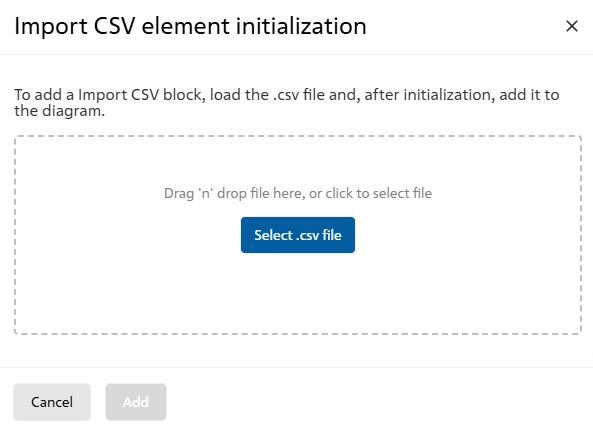
CSV Block Initialization Message#
After this, you need to click on the Select .csv file button and select the imported file from your computer.
Next, messages should appear
about successful file upload - successfully completed;
about successful initialization - successfully completed.
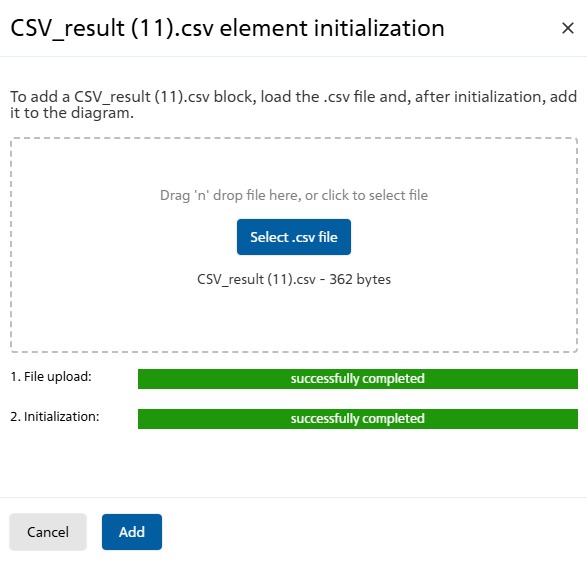
Messages about successful loading and initialization of CSV block#
Then, to complete adding the block to the work surface, you need to click on the Add button.
To cancel adding a block, you must click the Cancel button.
1. Properties#
Property |
Default Value |
Description |
Units of measurement |
|---|---|---|---|
Data source |
- |
Matches the name of the imported |
- |
Interpolation type: |
Linear |
- |
- |
Extrapolation type: |
Nearest value |
- |
- |
2. Inputs and outputs#
Note
A block can only have output ports, and their number and names are automatically determined based on the contents of the CSV table.
In order to see the connection capabilities of the block, you need to go to page Description of block ports
See also
An example of using this block can be found in the tutorial Working with CSV files: exporting and importing simulation results in the section External models.