

Favorites#
Viewing “Favorite projects” occurs after clicking LMB on the «Favorites» folder in the project tree, Fig. 1:
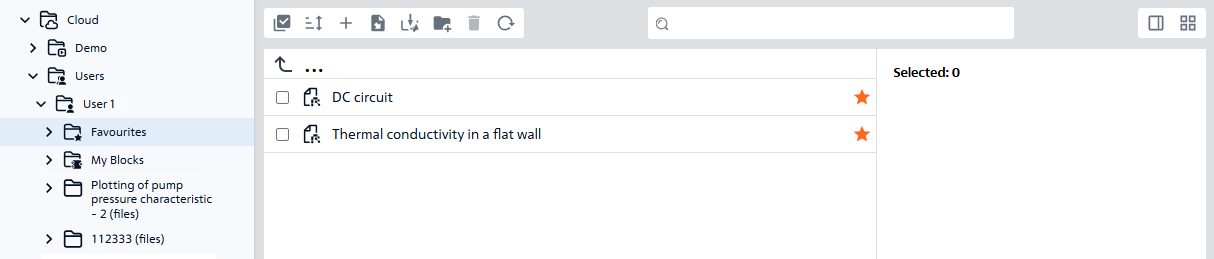
Fig. 1 Favorites folder#
Adding a project to favorites is done by RMB on the desired project and in the window that opens, select the option Add to Favorite projects with LMB, Fig. 2 and Fig. 3:
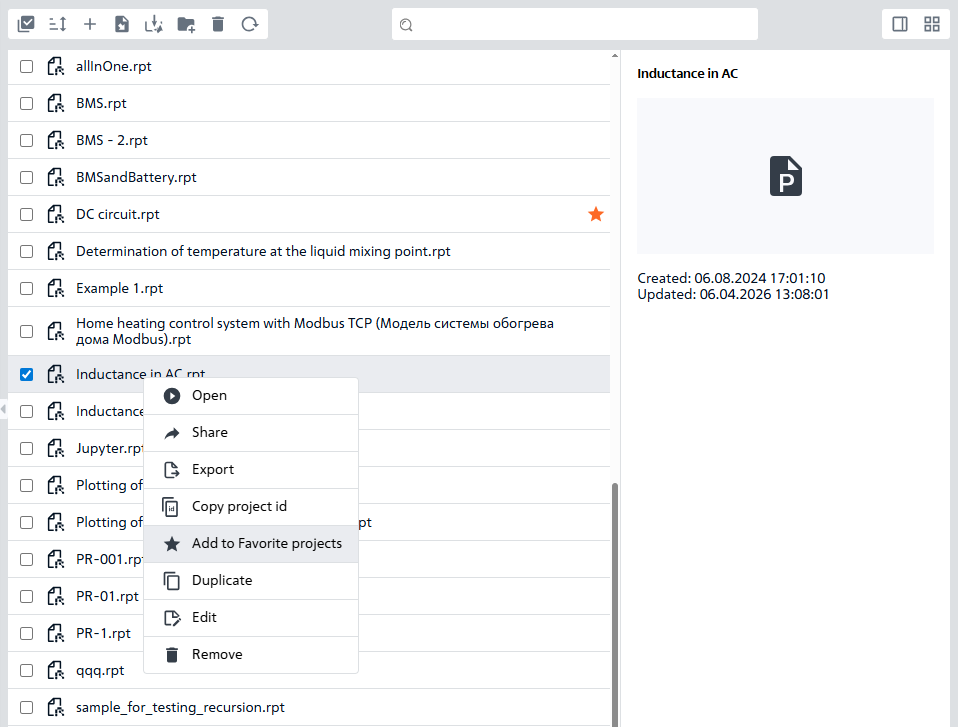
Fig. 2 Adding a project to favorites with a tabular display#
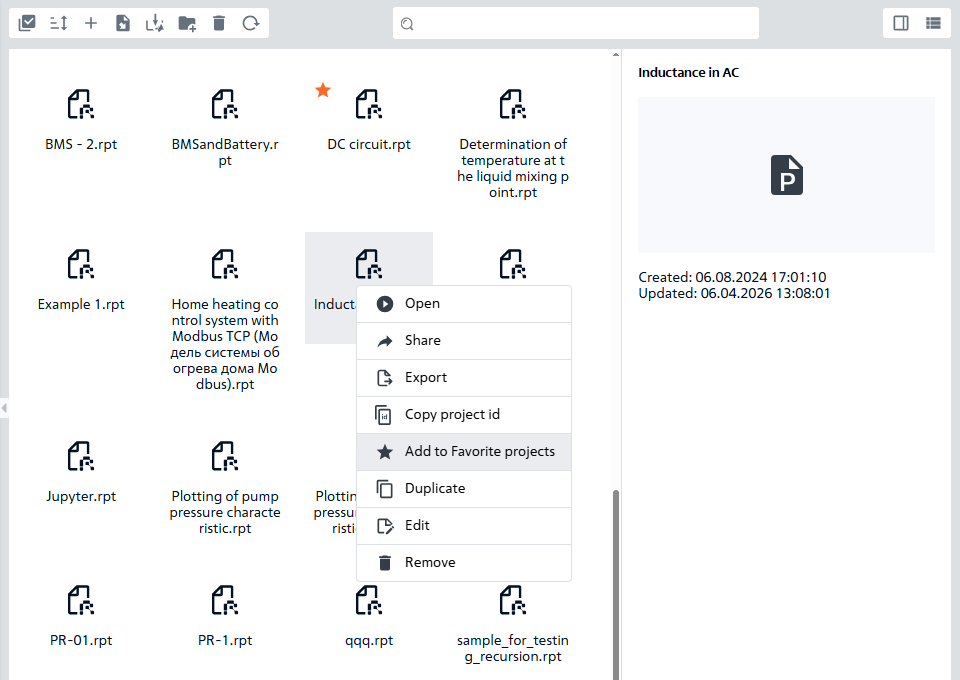
Fig. 3 Adding a project to favorites with tiled display#
After adding a project to favorites:
A window appears with the following content: Project successfully added to favorites (see Fig. 4 below);
To the right of the project title in table view or in the upper left corner of the file shortcut in tile view, the icon appears
 .

Fig. 4 Message about adding a project to favorites#
It is also possible to remove a project from favorites, to do this, RMB on it and then, in the window that opens, LMB on Remove project from favorites, Fig. 5:
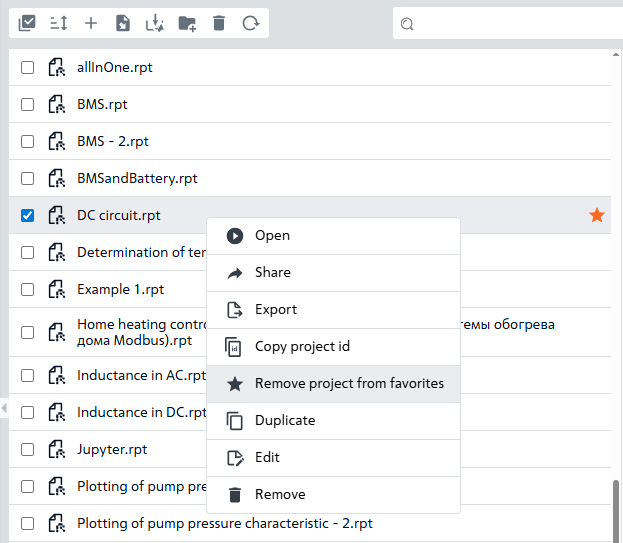
Fig. 5 Removing a project from favorites#
You can select all your favorite projects by clicking the button  (Select all) located in the upper left corner (see Fig. 6 below).
Hint
Clicking the button  remove the selection of all favorite projects
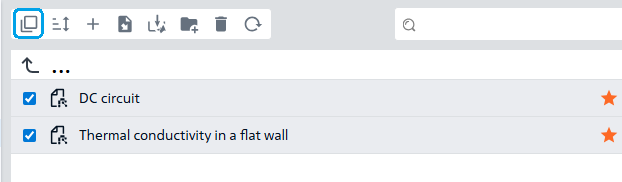
Fig. 6 Selecting all favorite projects#
When working with the list of favorite projects, it is possible to sort them similarly to sorting the list in demo projects.
To delete a favorite project, you must do one of the following:
RMB on the project you want to delete and select the
Removebutton in the window that appears, Fig. 7:
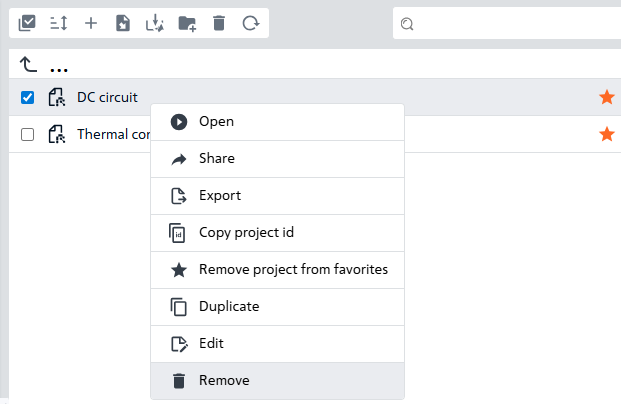
Fig. 7 First option for deleting a project#
Then you need to confirm the deletion by clicking the Remove button or cancel it by clicking the Cancel button, Fig. 8:
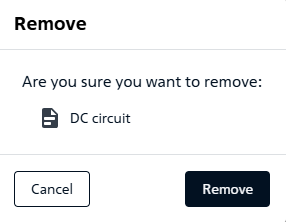
Fig. 8 Confirm or cancel project deletion#
select LMB the project that you want to delete and in the panel for working with favorite projects, click on the button
 , Fig. 9:
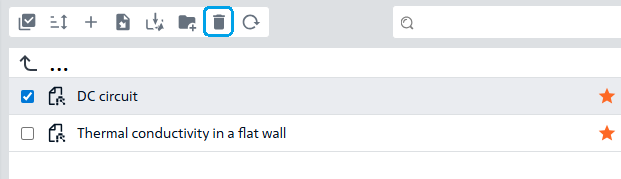
Fig. 9 Second option for deleting a project#
Then you need to confirm the deletion or cancel it in the same way as in the first deletion option.
It is also possible to update the list of favorites similar to updating the list in demo projects.
Preview show is enabled and disabled in the same way as in demo projects.
Changing the display type of files of favorite projects happens exactly as in demo projects.