

Module availability state indication#
Allows you to see the modules available for working with according to the purchased license
On the canvas, under the top panel on the right, there is a button  with an indicator that shows the availability of modules by sections:
Green indicator – indicates that partition modules are available
.Red – shows that the modules in this section are unavailable, indicating that all workstations are occupied
 .
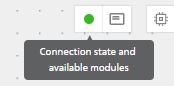
Fig. 1 Indicator status
Clicking this button opens a window with indicators of available sections according to the purchased license.
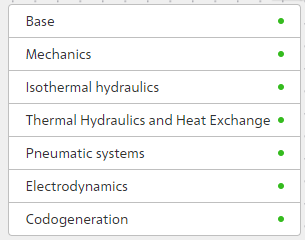
Fig. 2 Available modules by sections
Important
When authorizing, the application knows which modules (partitions with modules) are available to the user according to its license.
Next to the button with the indicator there is a button  “Modules involved in the diagram”.
Fig. 3 Modules involved in the diagram
When clicking on it, a window gets opened with the number of modules involved by sections.
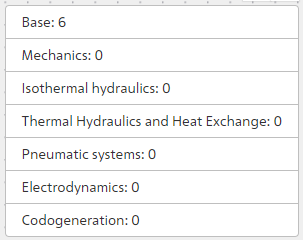
Fig. 4 Number of modules involved by sections
Important
The license encodes the number of workstations and available blocks (sections with blocks).