

Demo#
Viewing of «Demo projects» occurs after clicking LMB on the «Demo» folder in the project tree, Fig. 1:
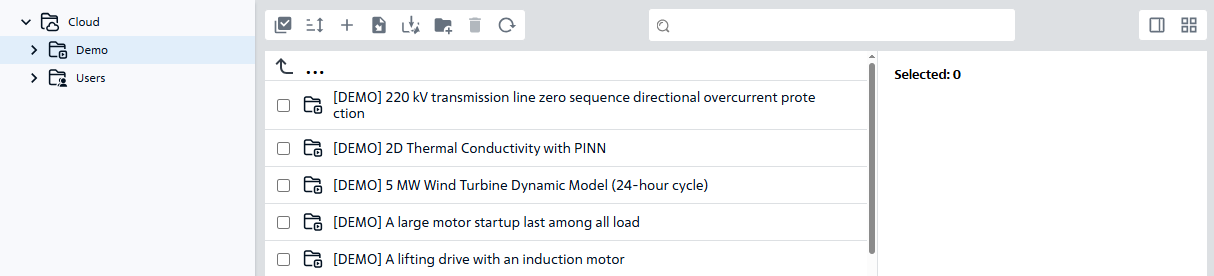
Fig. 1 Folder Demo#
Important
The «Demo project» opens only in view mode, Fig. 2
Hint


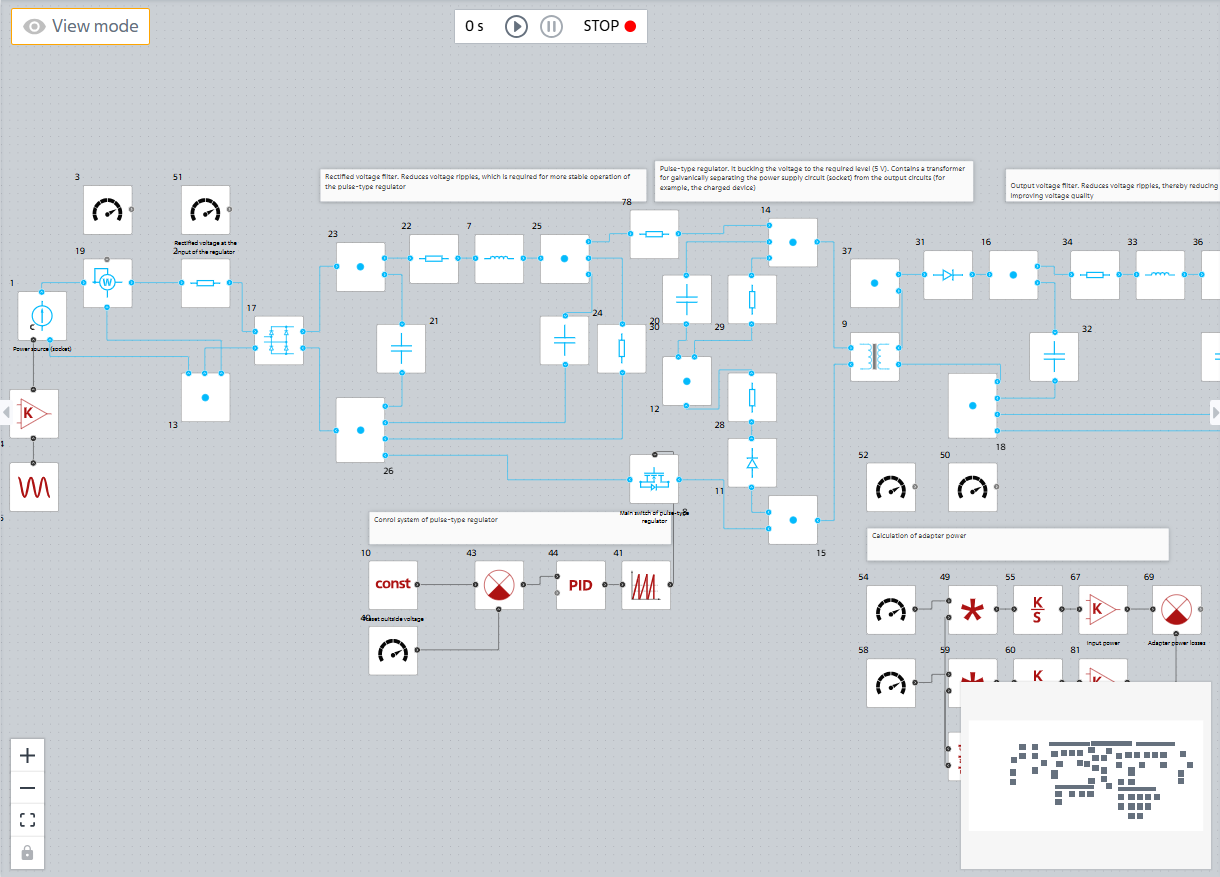
Fig. 2 View mode#
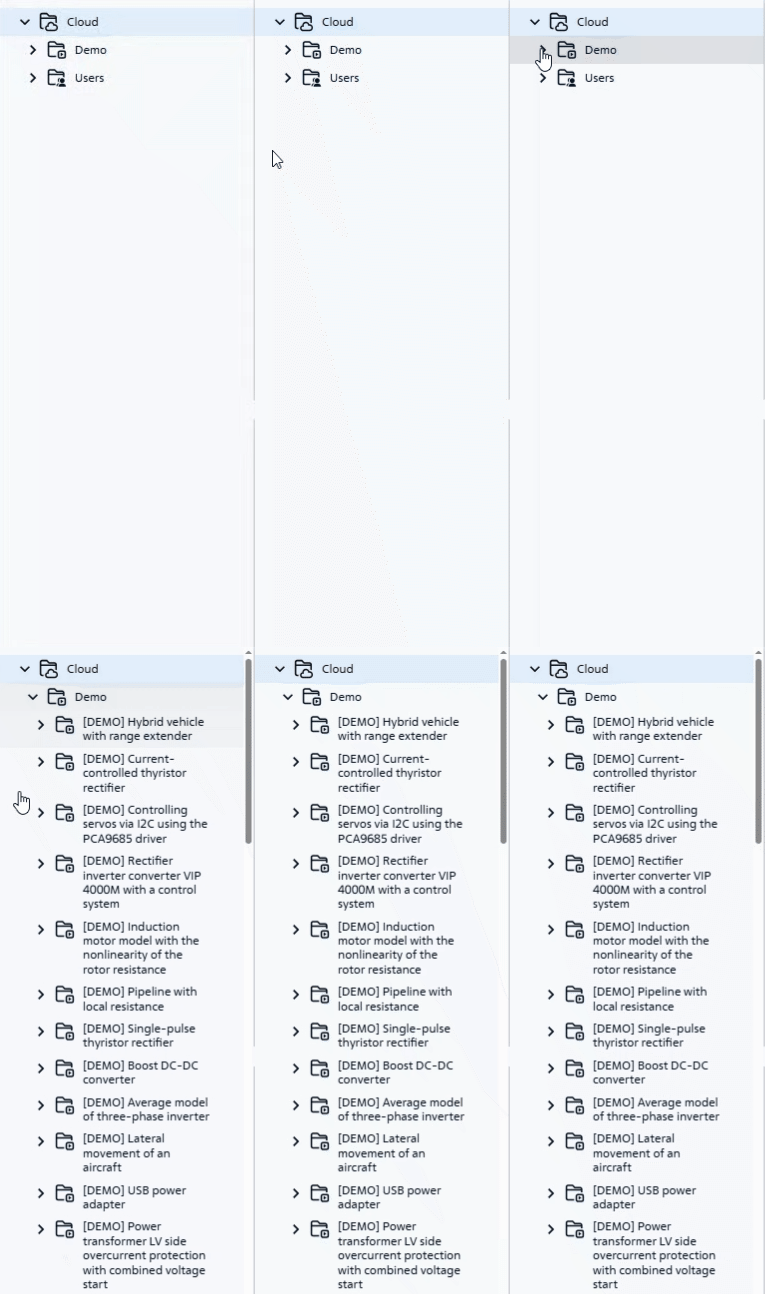
Fig. 3 Expanding the tree with Demo projects#
To be able to edit the «Demo project», you need to add it to your projects by RMB on the desired «Demo project», and then LMB on the Add to projects button, Fig. 4:
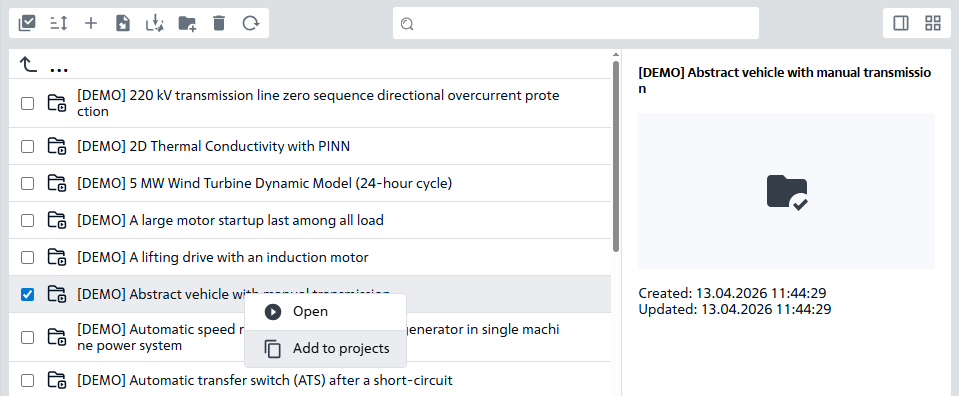
Fig. 4 Adding a Demo project to yourself#
When working with a list of «Demo projects», you can sort them:
in ascending order
 ;
in descending order
 ;
by type
 ;
by created date
 ;
by created date
 ;
by modified date
 ;
by modified date
 .
To select a sorting method, you need to click on the button  , which is located at the top left, Fig. 5:
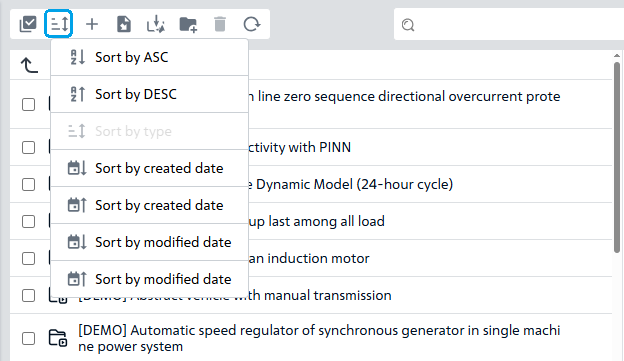
Fig. 5 Sorting Demo projects#
The list of «Demo projects» is updated by clicking the button  (Update), which is located in the center at the top, Fig. 6:
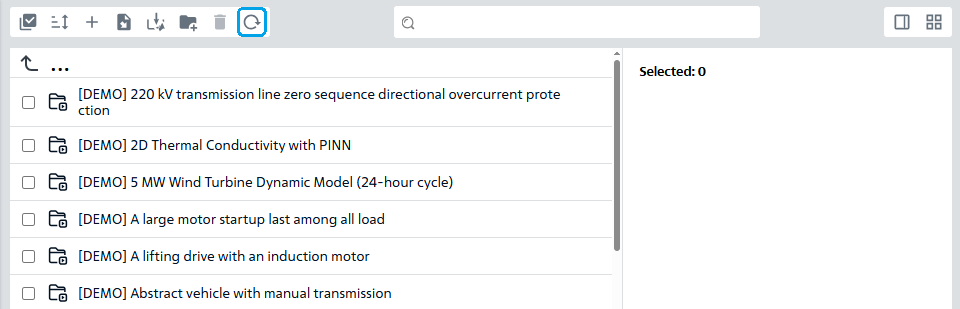
Fig. 6 Updating the list of Demo projects#
When working with «Demo project» files, you can also enable/disable preview mode. To enable/disable it, click the  (Preview show) button, which is located in the top center, Fig. 7:
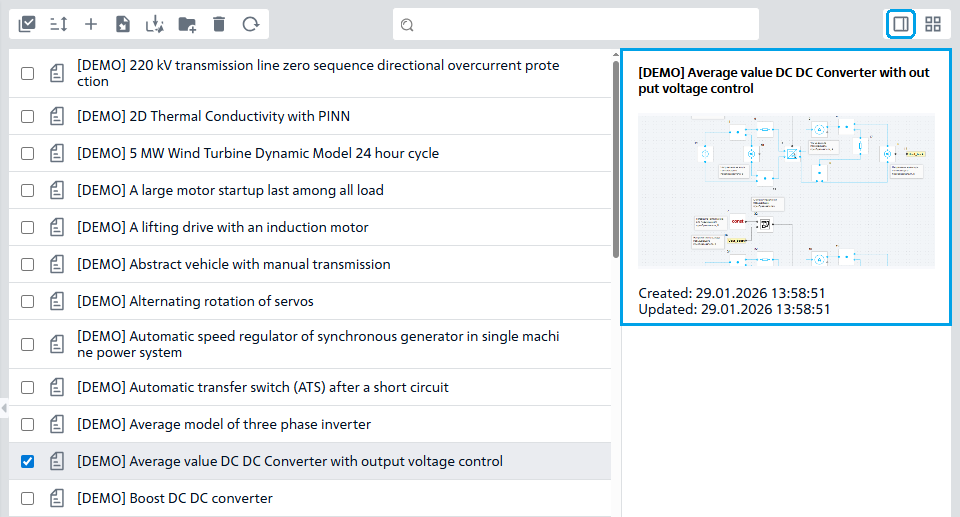
Fig. 7 Showing a preview for a Demo project#
There are two options for displaying «Demo project» files:
As a table
 ;
In tile format
 .
The display view of «Demo project» files can be changed by clicking the button (Change view mode) or the button (Change view mode), depending on the current viewing mode of the user, which are located at the top right, Fig. 8 and Fig. 9:
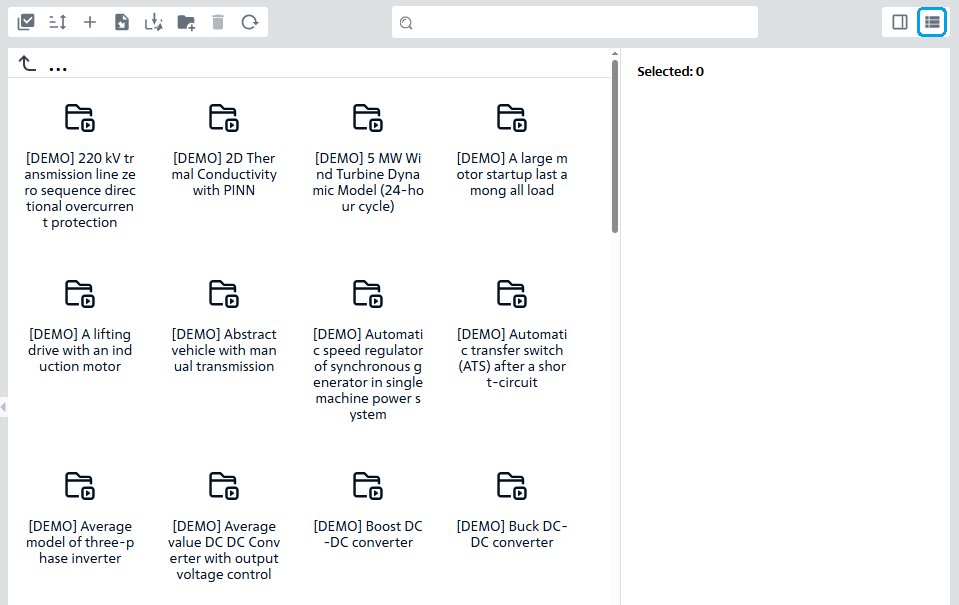
Fig. 8 Changing the display type of Demo project files to tiled#
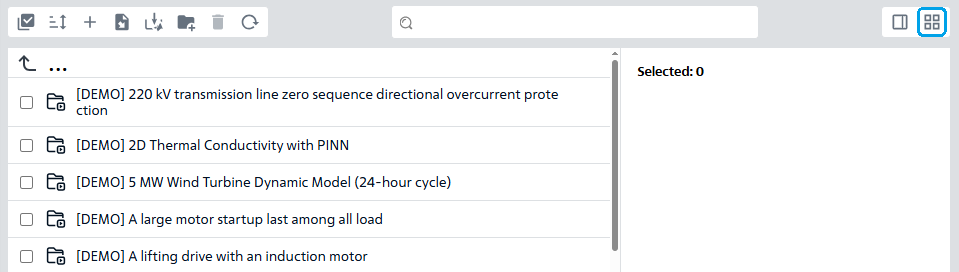
Fig. 9 Changing the display type of Demo project files to a table#