

Getting started#
There are three simple steps to start using REPEAT VISION:
Let’s consider the process of getting acquainted with the platform on the example of the public cloud version REPEAT VISION.
1. App#
Attention
Recommended browsers for working with REPEAT VISION and their minimal versions
Open your browser and type the address of the cloud version of REPEAT VISION into the address bar
https://app.repeat.vision
This loads the start page of the REPEAT VISION platform
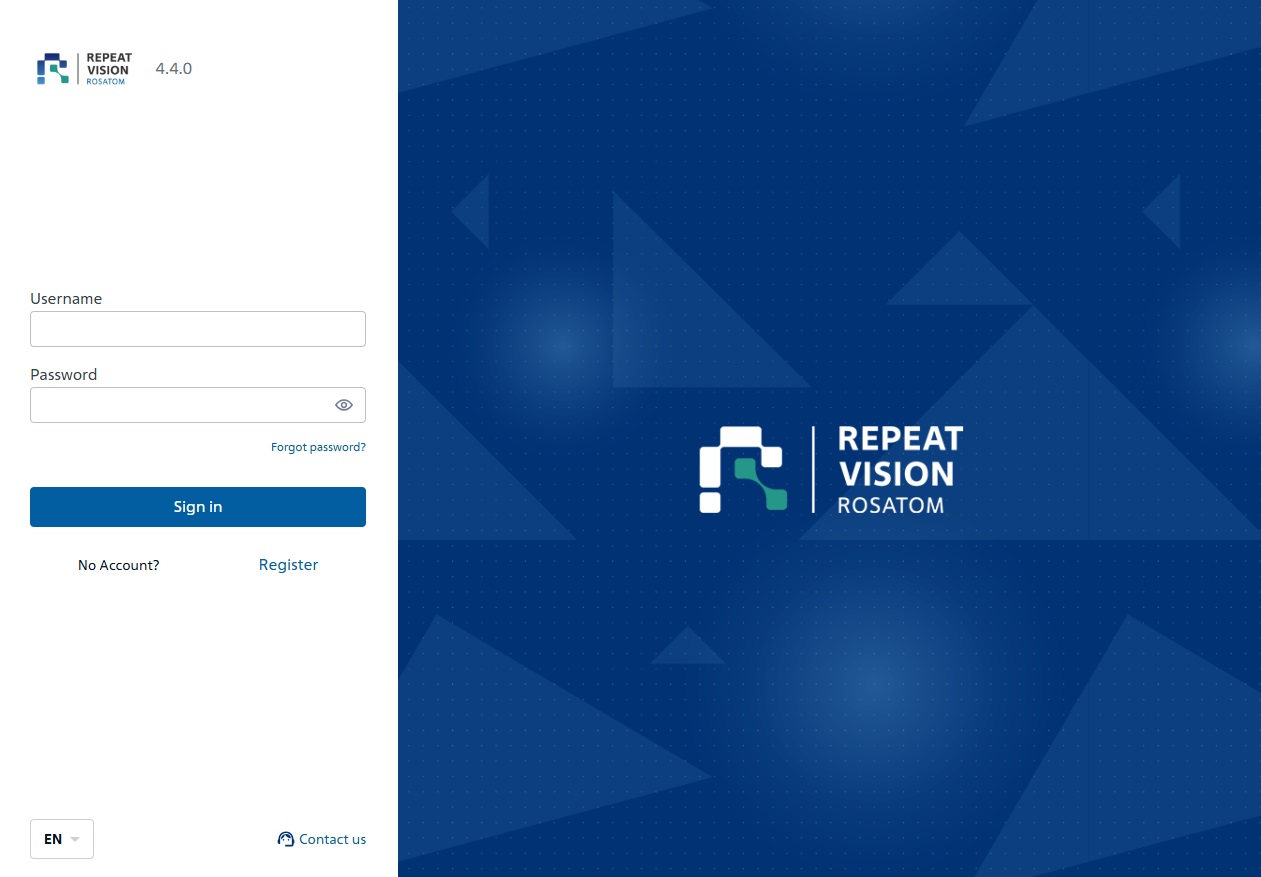
Start page of the REPEAT VISION platform#
2. Sign up#
2.1. For individuals#
Click on the link labeled Register
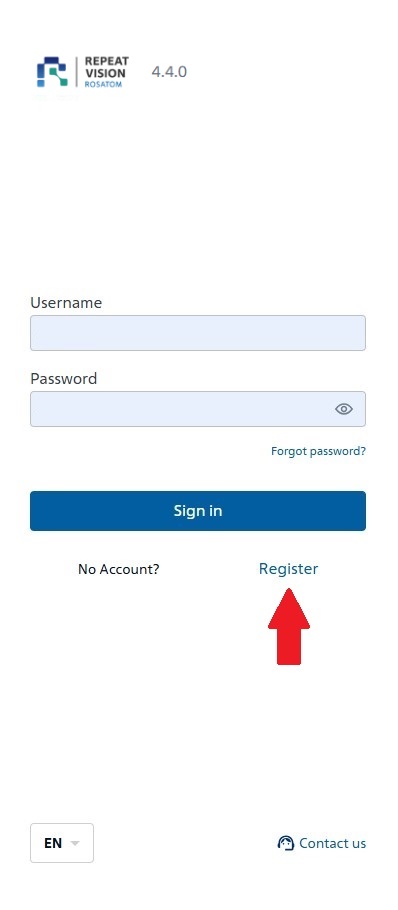
Sign up#
Then select the type of account, e.g. Individual.Once you have made your selection, press the Next button.
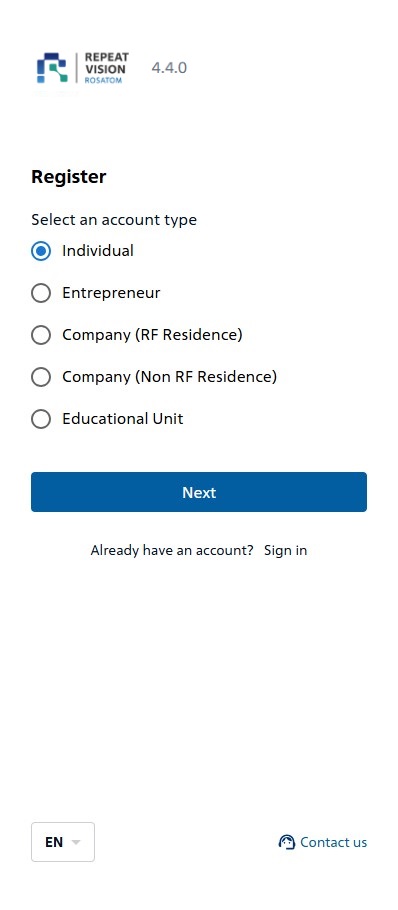
Selecting an account type#
Then fill in the required fields of your account, read the necessary documents and agree to work with the platform in accordance with its terms of use. After completing all actions, click on the Finalize button.
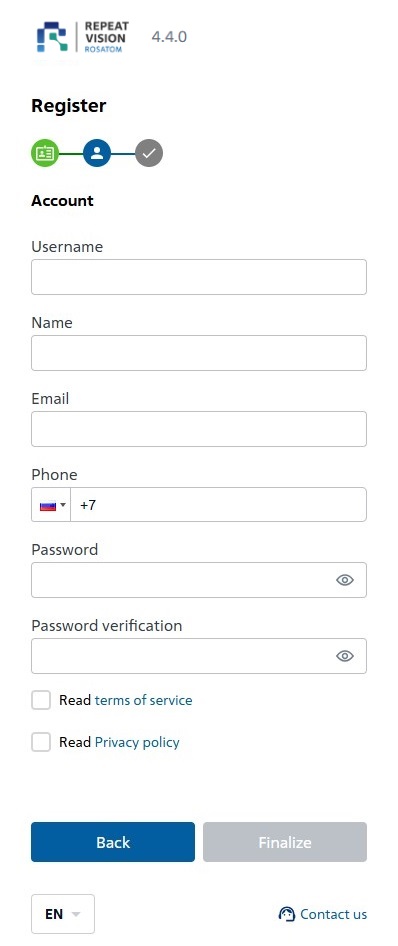
Filling out the required fields#
As a result of successfully completing the registration procedure, you can enter REPEAT VISION through the next authorization step.
2.2. For entrepreneurs#
Click on the link labeled Register
Then select the type of account, e.g. Entrepreneur. Once you have made your selection, press the Next button
Registration fields Entrepreneur:
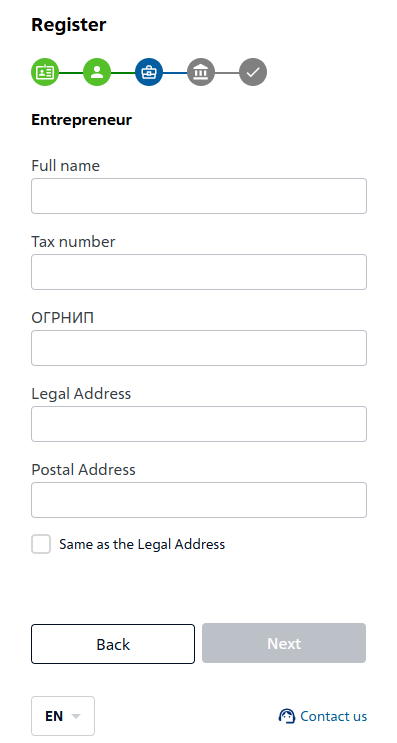
Fields for registering entrepreneurs#
Table filling in fields for Entrepreneurs:
Field name |
Mandatory filling |
|---|---|
Full name |
Necessarily |
Tax number |
Optional |
OGRNIP |
Optional |
Legal Address |
Optional |
Postal Address |
Optional |
Same as the Legal Address |
Optional |
Then fill in the required fields of your account, read the necessary documents and agree to work with the platform in accordance with its terms of use. After completing all actions, click on the Finalize button
As a result of successfully completing the registration procedure, you can enter REPEAT VISION through the next authorization step.
2.3. For companies, educational units#
Click on the link labeled Register
Then select your account type:
Company (RF Residence)Company (Non RF Residence)Educational Unit
After making your selection, click the Next button
Registration fields Company (RF Residence) and Educational Unit:
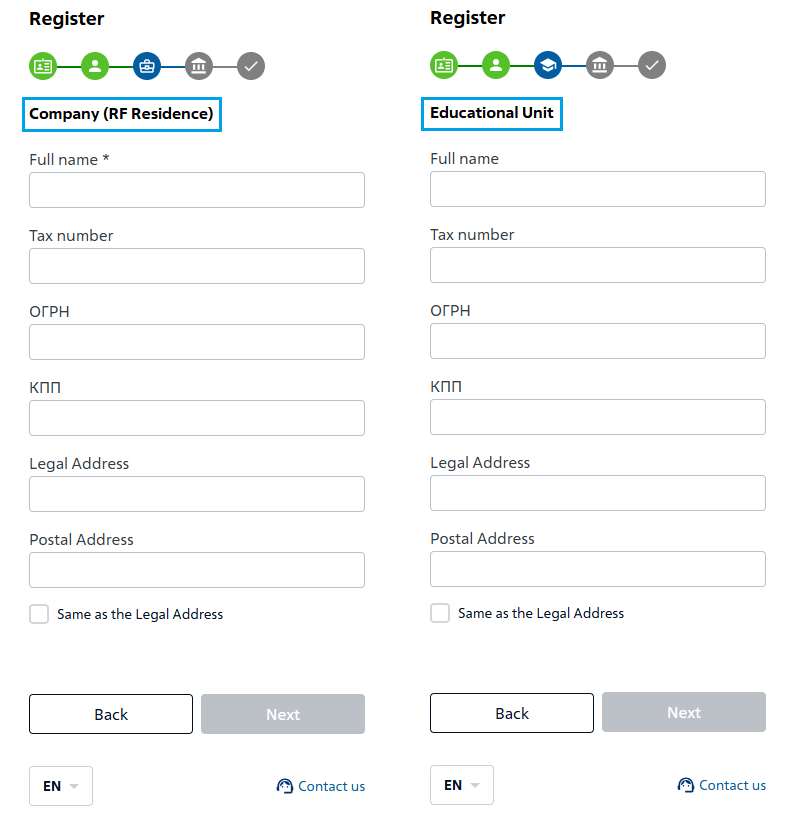
Registration fields#
Table filling in fields for Company (RF Residence) and Educational Unit:
Field name |
Mandatory filling |
|---|---|
Full name |
Necessarily |
Tax number |
Optional |
OGRN |
Optional |
KPP |
Optional |
Legal Address |
Optional |
Postal Address |
Optional |
Same as the Legal Address |
Optional |
Registration field Company (Non RF Residence):
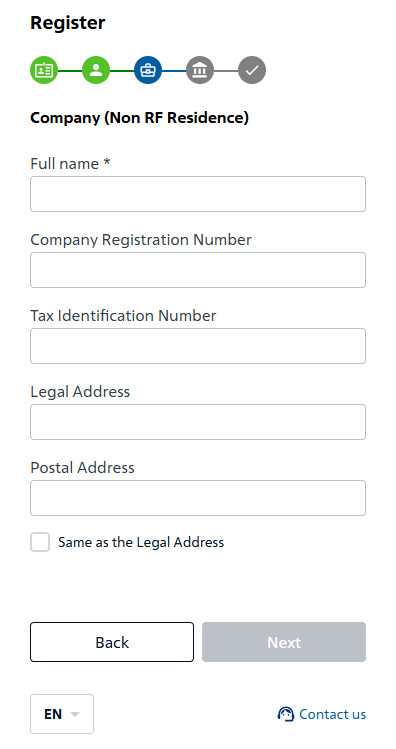
Registration field for companies (Non RF Residence)#
Table filling in fields for Company (Non RF Residence):
Field name |
Mandatory filling |
|---|---|
Full name |
Necessarily |
Company Registration Number |
Optional |
Tax Identification Number |
Optional |
Legal Address |
Optional |
Postal Address |
Optional |
Same as the Legal Address |
Optional |
Then fill in the required fields of your account, read the necessary documents and agree to work with the platform in accordance with its terms of use. After completing all actions, click on the Finalize button
As a result of successfully completing the registration procedure, you can enter REPEAT VISION through the next authorization step.
3. Authorization#
To log in to REPEAT VISION, enter the data in the Username and Password fields previously filled in during registration. After entering your login and password, click on the Sign in button.
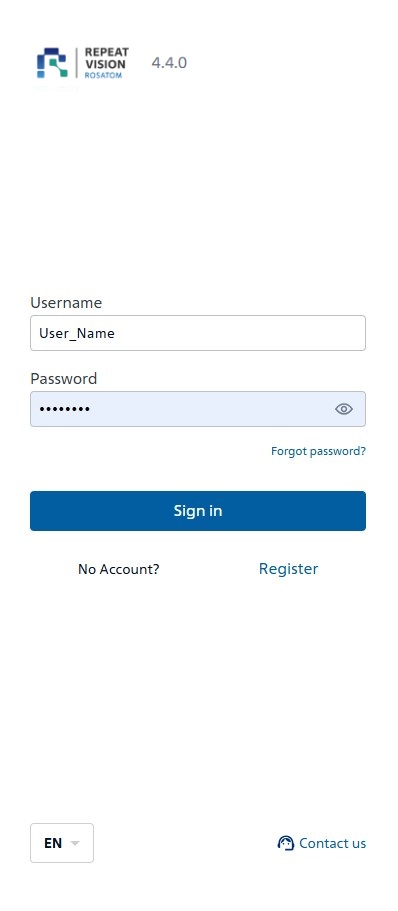
Login to REPEAT VISION#
As a result of successful authorization, you will load the REPEAT VISION GUI with a description window What's new? in the current version of the platform
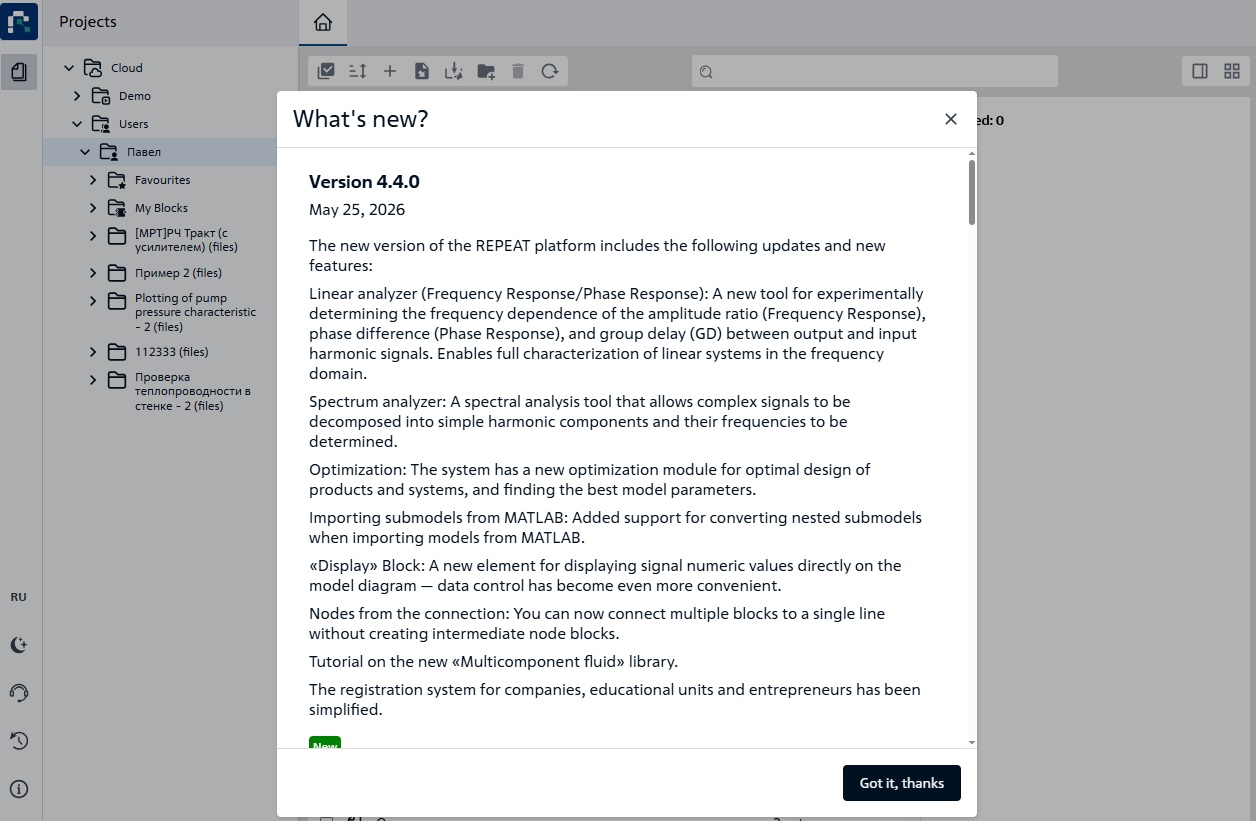
Description window “What’s new?”#
Learn about the features of the REPEAT VISION platform during several tutorials.