

Import from MATLAB#
This feature allows users to load a MATLAB project with the .mdl or .slx extension onto the REPEAT VISION platform.
Added in version 4.4.0: The new version supports the conversion of nested submodels (Subsytem and Subsystem References) from the following MATLAB versions: 2020a, 2020b, 2021a, 2021b
Important
In the current version, the function for importing projects created in Matlab software has the following limitations:
the project must be saved in the .mdl or .slx format;
for correct import, you need to set fixed calculation step in the configuration parameters;
conversion is possible for:
.mdl files version 2021b;
.slx 2016-2021;
blocks in the Automation section.
conversion of nested projects (Model Reference) is not supported.
Hint
In the Solver Configuration in the parameter Fixed-step size (fundamental sample time) you must replace the value auto with a number (for example, 0.001).
Importing a MATLAB project occurs after LMB clicking on the button  (Import from MATLAB).
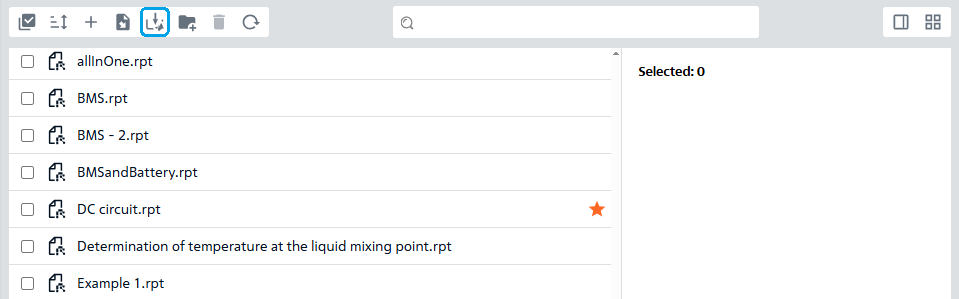
Fig. 1 Import from MATLAB#
Then the following window opens, Fig. 2:
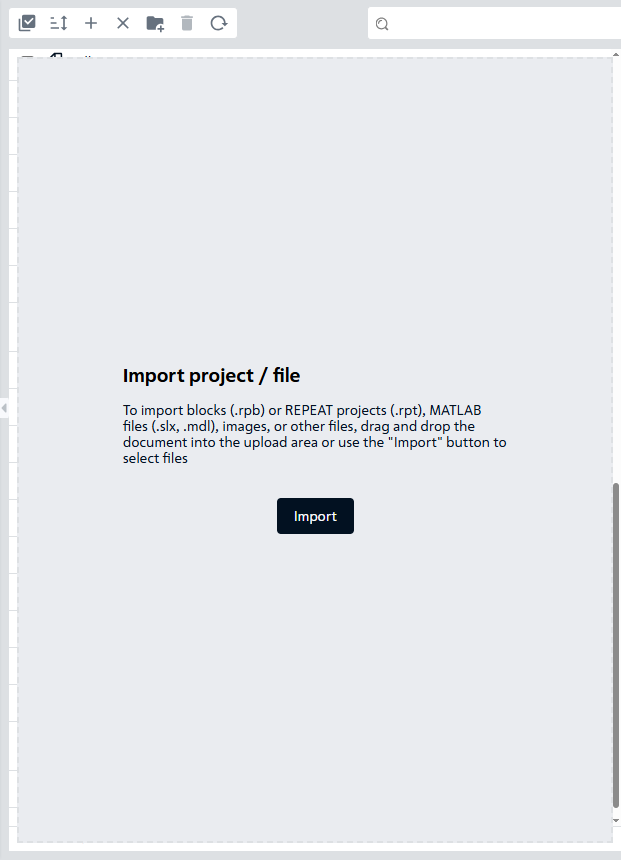
Fig. 2 MATLAB Import Window#
In order to import a MATLAB project, you need to click on the Import button and select the required file with the appropriate extension. You can also drag and drop a file with the appropriate extension from your computer into the grey project/file import area (see Fig. 2 above).
After successful import, the following message should appear:

Fig. 3 Project Successfully Imported#
To cancel the import, you need to click on the button  (see Fig. 2 above), located in the top center, which will appear instead of the button .
Note
If during conversion a block REPEAT VISION cannot be found that unambiguously corresponds to a Simulink block, a stub/empty block is created in its place, requiring further replacement by the user, and the following message about replacing or deleting the block appears:
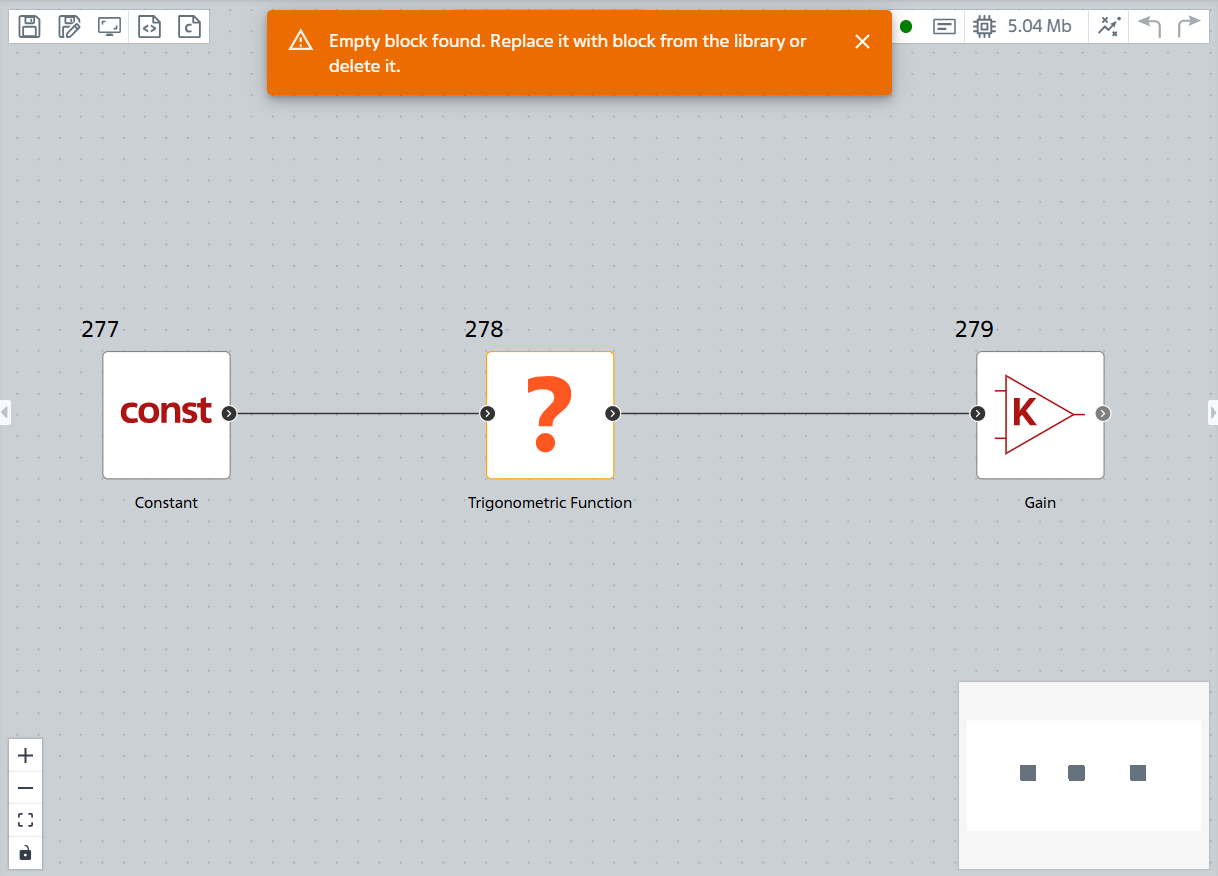
Fig. 4 View of Blocks That Cannot Be Converted#