

Automate interaction with the model from Python program#
The following conditions shall be met to automate work with REPEAT VISION model:
The model shall be debugged, it shall contain no startup errors, and calculation shall terminate successfully;
The model shall contain global variables associated with the block properties you need. Global variables of REPEAT VISION model are used to get initial values of properties by web API. The parameters and boundary condition values from your Python program are recorded in global variables of the model.
Note
Please familiarize with tutorial on REPEAT VISION model preparation for automation in our documentation.
During this tutorial, you will learn:
How to obtain access to REPEAT VISION model with possibility of passing new values of variables into it and obtaining calculation results;
Which data structures are supported by Python objects to interact with REPEAT VISION model;
Rules and guidelines to interact with REPEAT VISION model from Python program.
1. Start of work#
Firstly, it is necessary to select a tested model that successfully performs the calculation, contains global variables and Output portblock. The example from “Model preparation for automation” tutorial can be used as such a model.
Next, it is required to create a Python program file in your working folder to execute this tutorial. Create a file with example_model_interaction.py name and open it in a text editor or developer environment.
2. Import of necessary dependencies#
Any Python program starts by importing the necessary dependencies. The following packages will be needed to automate work with the REPEAT VISION model.
1# -*- coding: utf-8 -*-
2import pandas as pd
3import numpy as np
4
5import repeat as rp
3. User API key setting#
The connection to REPEAT VISION requires using API key, which you can generate in the corresponding settings section of your account.
Note
For detailed description of steps to configure API key see the corresponding section of our documentation.
Copy API key from your account and assign the string value for key to token argument of User class according to code example given below.
5import repeat as rp
6
7user = rp.User(token = 'enter a unique API key from REPEAT user cabinet instead of this comment')
8app = rp.Application(user)
Row 7. It creates the User class instance to configure access to REPEAT platform from Python program
Row 8. It creates an instance of Application class, in which
addressargument is configured by default - the address of connection to platform cloud version REPEAT VISION.
Attention
If you work with REPEAT VISION distribution, it is required to specify the address to your REPEAT VISION distribution when creating an instance of Application class, for example:
app = rp.Application(
    user,
    address = 'http://MYLOCAL.REPEAT.ADDRESS'
    )
4. Customizing the project ID#
The project ID is required to configure the connection between your Python program and REPEAT VISION model, which you have chosen to automate the interaction.
The REPEAT VISION project ID can be obtained with the following ways:
From graphical interface of application in project management section
Directly in working area when operating with the project
Via web API
Using API package
repeat.
As part of the tutorial, we will consider way No. 1.
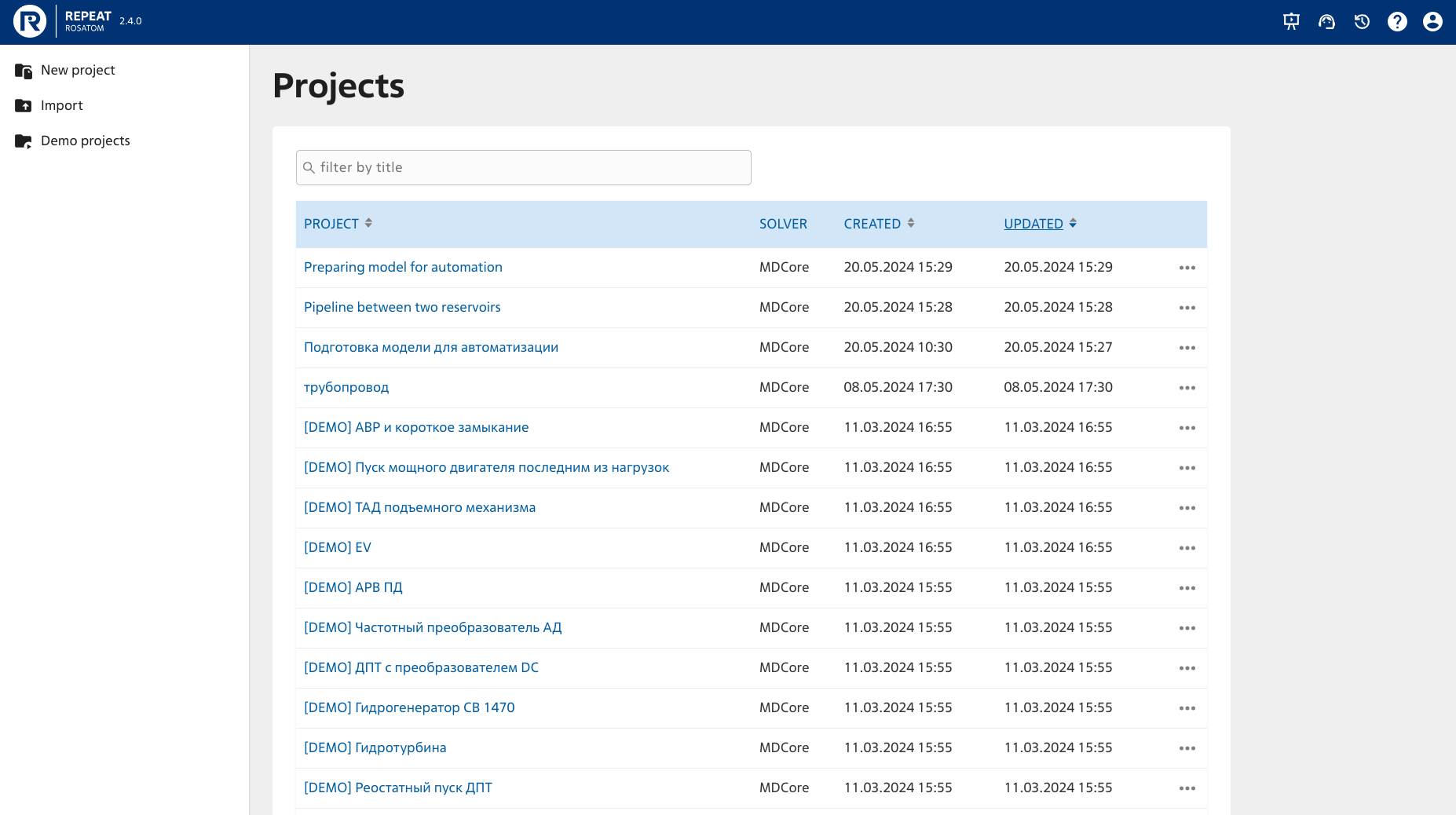
Open Projects section of REPEAT VISION application. The project management section will look like the picture below, only with your project list.
It is necessary to select the right project to automate the work. Select Model preparation for automationproject, by clicking on ..., button located at the end of row with this project.
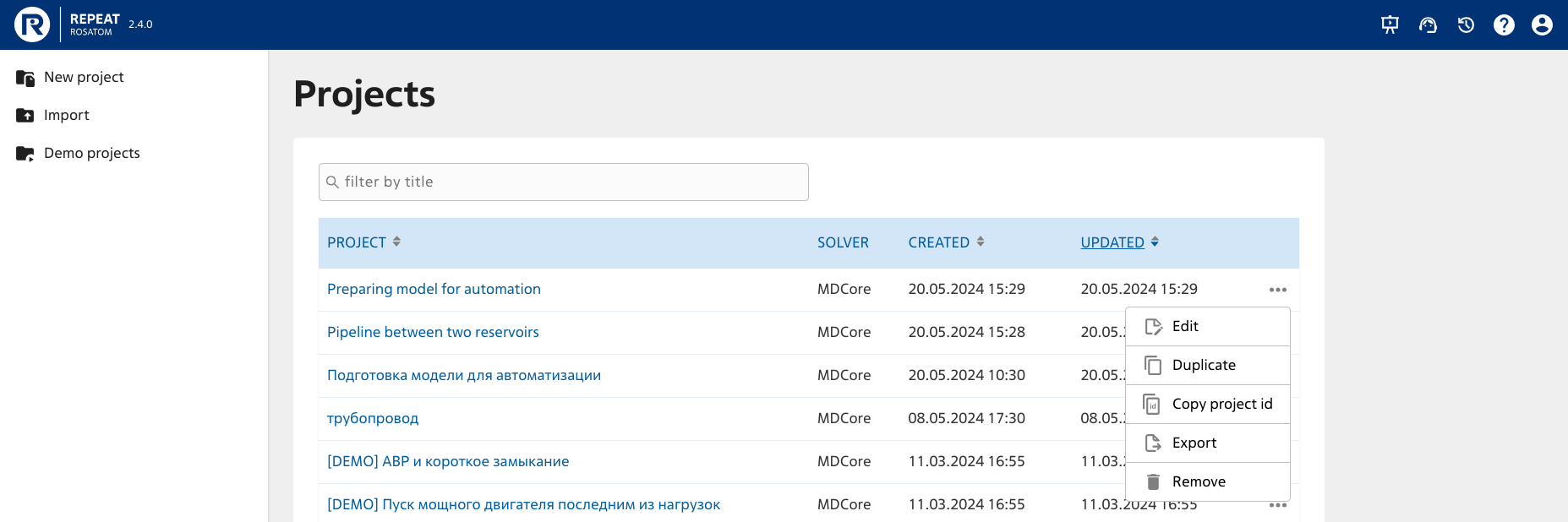
In actions list, it is necessary to select Copy project id to get a unique project id.
Then in your Python program file, it is necessary to create project variable and assign number of previously copied project id value to the variable.
project = 12345
Tip
If you know project name of a model you plan to work with from a Python program, you can get the project ID from projects attribute of Application class instance in the following way.
from pprint import pp

app = rp.Application(user)
pp(app.projects)

# {12345: {'userId': 11,
#          'projectId': 12345,
#          'role': 'owner',
#          'createdAt': '2024-03-11T11:18:36.419167Z',
#          'updatedAt': '2024-03-11T11:18:36.419167Z',
#          'projectName': 'Подготовка модели для автоматизации',
#          'solverType': 'mdcore',
#          'vm': {}},
#  45678: {'userId': 11,
#
# ...
Find the required project by project name key projectName. The identifier of a required project is stored in value for projectId key.
For example, for a project with Model preparation for automation name, the project identifier has 12345 value.
5. Getting the model object#
The following step creates a copy of TimeInterval to set the time interval where the user needs to get values of parameter calculation results from REPEAT VISION model.
t_interval = rp.TimeInterval(start = 1, end = 1000)
This setting means that Python program will load time series of calculation results starting from \(1 [ms]\) to \(1000 [ms]\).
Then it is necessary to configure Python object to interact with your REPEAT VISION model as follows.
from pprint import pp

model = app.get_exploration_model(project, t_interval)
pp(model)
# ExplorationModel(
#   project = 12345,
#   name = 'Подготовка модели для автоматизации',
#   time_interval = TimeInterval(start = 0, end = 1000)
#   )
The model object is an instance of ExplorationModel class and is created by get_exploration_model method of Application class instance. In this case, get_exploration_model пmethod is passed the project ID and time interval arguments configured earlier.
ExplorationModel class provides interaction with REPEAT VISION model with the possibility to start the model calculation process with the transfer of global variables values to the model and with the possibility to upload the calculation results.
The model instance of ExplorationModel class allows Python program to get a set of existing REPEAT VISION model global variables, which can then be used to pass the actual property values to perform a new calculation. Now let’s get a set of existing global variables for Model preparation for automation project.
existing_vars = model.existing_variables
print(existing_vars)
# pressure    70000.00
# dtype: float64
We can see that Model preparation for automation project has one global variable pressure, which we created earlier during same-name tutorial.
6. Creating a data structure to send new values of global variables to REPEAT VISION model#
It is necessary to prepare the initial data before the calculation . ExplorationModel class supports data structures of popular data preparation and processing package pandas.
Create in pandas.Series structure the initial Gauge pressure data for pressure global variable of Model preparation for automationproject.
variables = pd.Series({'pressure' : 85000}, dtype = float)
print(variables)
# pressure    85000.0
# dtype: float64
7. Start execution of one calculation#
Now it is possible to start execution of one calculation, as earlier we created only one value of pressure global variable.
 1variables = pd.Series({'pressure' : 85000}, dtype = float)
 2with model as md:
 3  md.run(variables)
 4  flow_rate = md.get_results('flowrate')
 5
 6flow_rate.tail()
 7# 800.0     529.7379
 8# 850.0     529.7379
 9# 900.0     529.7379
10# 950.0     529.7379
11# 1000.0    529.7379
12# Name: flowrate, dtype: float64
Row 1. Specify the overpressure value for
pressureglobal variableRow 2. The reference to REPEAT VISION model through the context manager is opened to enable safe interaction during the calculation
Row 3. The model is started to calculate by
runmethod with passing the actual value of global variable as an argumentRow 4. The calculation results are loaded from REPEAT VISION model into
pandas.Seriesstructure usingget_results, method, which is passed the value offlowrateargument,which was previously configured in REPEAT VISION model inUser nameparameter ofOutportblock tutorial “Model preparation for automation”.Rows 6 - 12. Output to console of time series values of flow rate in the pipeline for last 5 values of the series. Flow rate \(529.73 [kg/s]\) is calculated for Gauge pressure \(85000 [Pa]\).
Important
When your Python program interacts with REPEAT VISION model, it is required to apply the context manager of ExplorationModel class, which ensures:
Safe termination of REPEAT VISION model calculation
Storage of calculation results until next iteration of model start for calculation
8. Conclusion#
The code of whole Python program is given below.
 1# -*- coding: utf-8 -*-
 2import pandas as pd
 3import numpy as np
 4
 5import repeat as rp
 6
 7user = rp.User(token = 'enter a unique API key from REPEAT user cabinet instead of this comment')
 8project = 12345
 9t_interval = rp.TimeInterval(start = 1, end = 1000)
10app = rp.Application(user)
11model = app.get_exploration_model(project, t_interval)
12variables = pd.Series({'pressure' : 85000}, dtype = float)
13with model as md:
14  md.run(variables)
15  flow_rate = md.get_results('flowrate')
As a result of completing this tutorial, you have learned:
Get a project identifier to apply it to Python program
Create a model object for further interaction with REPEAT VISION project
Perform a secure connection to REPEAT VISION model from Python program using context manager
Send actual values of global variables to REPEAT VISION model and start the model for calculation
Load calculation results into Python program from
Outportsof REPEAT VISION model